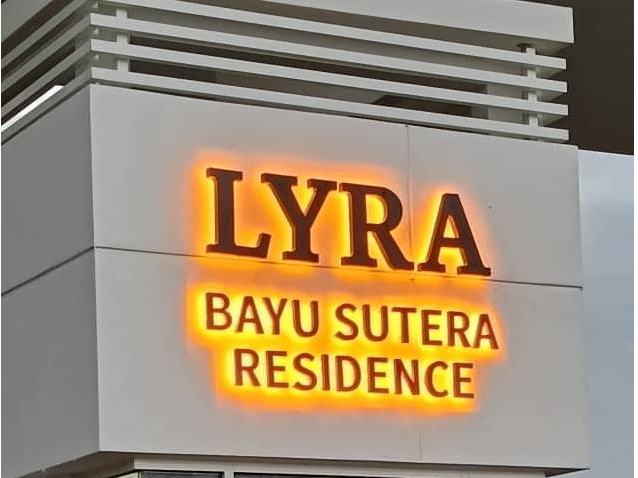
Step 1
Getting Started
New to LYRA BAYU SUTERA? Follow these steps to get your account set up and activated.
Submit Your Registration
OnlineVisit the Resident Registration page. Fill in your full name, unit number, block, chosen username, phone, and email. Upload your ID photo if requested.
Wait for Management Approval
PendingThe Management Office will review your registration. This usually takes 1–2 working days. You will receive an email once your account is approved.
Receive Login Credentials
EmailAfter approval you will receive your login email and a temporary password. Check your spam/junk folder if you do not see it.
Log In to the Resident Portal
ActiveGo to Resident Login and enter your email and password. You will land on your personal dashboard.
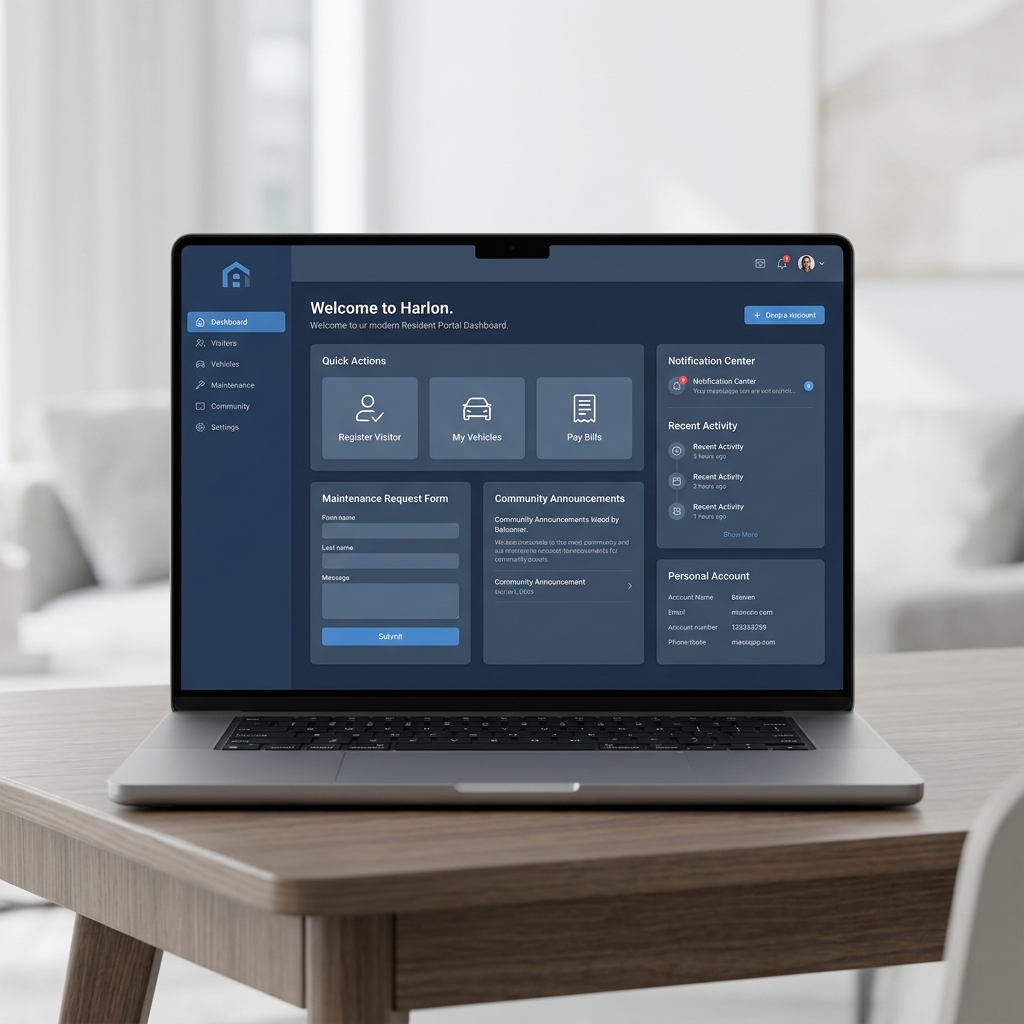
Step 2
Linking Your Telegram
Linking Telegram unlocks the most powerful features — instant visitor alerts, approve/reject buttons, invoice notifications, and full bot management without opening the website.
Open the Portal Bot
Search for the community Telegram bot in Telegram (ask management for the bot username) and press Start.
Type /register
Send /register to the bot. It will ask for your registered username to link your account.
Enter Your Username
Type your registered username (no spaces). The bot will verify against your registered account.
Linked Successfully
You will receive a confirmation message. From now on, all alerts, invoices, and announcements go directly to your Telegram.
What you can do via the Telegram Bot:
Visitor Alerts
Tap Approve or Reject when a visitor arrives at the gate.
Manage Vehicles
Add or remove your registered vehicles without logging in.
Invoice Alerts
Get notified the moment a new invoice is generated for your unit.
Payment Confirmed
Receive confirmation as soon as your payment is recorded.
Announcements
Community notices delivered instantly to your Telegram.
/help
Send /help to the bot anytime to see all available commands.
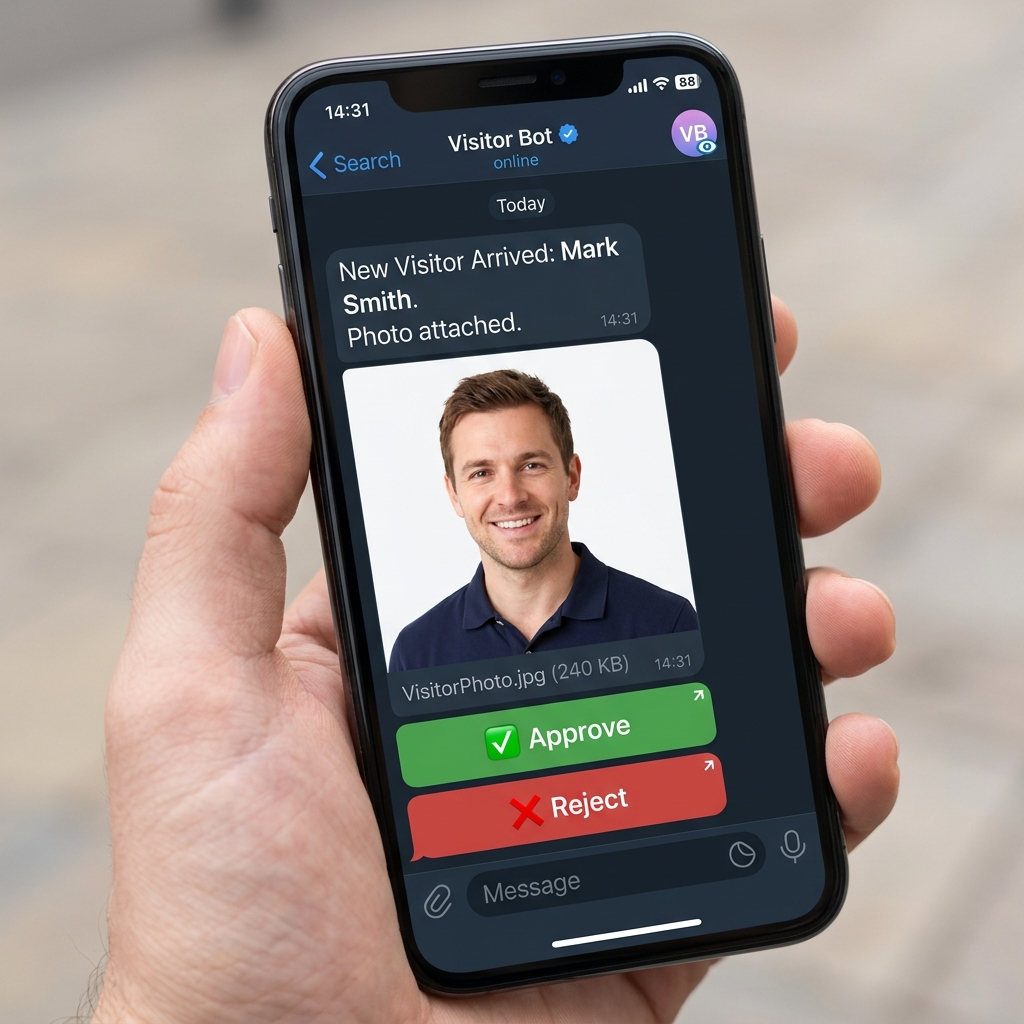
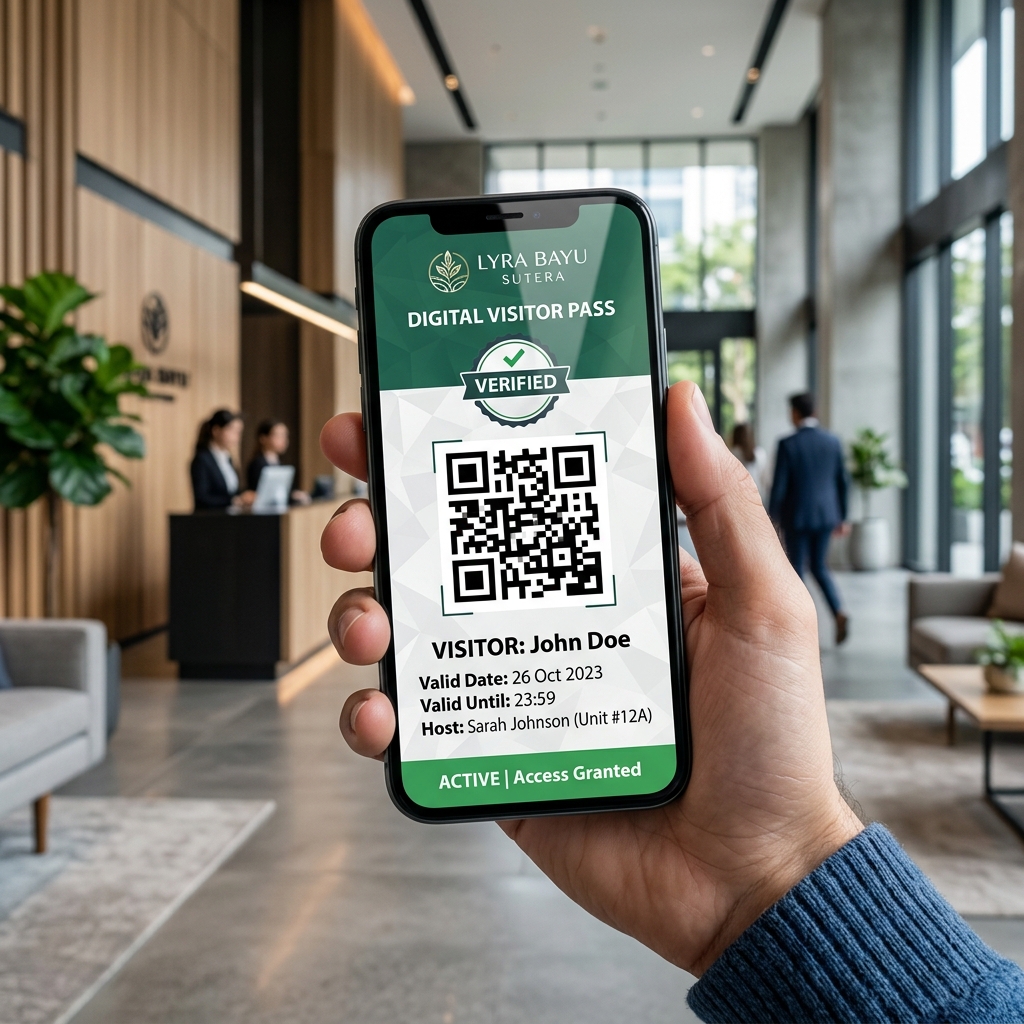
Step 3
Managing Visitors
There are two ways a visitor can enter — you pre-register them in advance, or they walk in unannounced and you approve in real time.
Plan Ahead
Best for expected guests — family, friends, deliveries. A QR pass is generated and shared with your visitor.
- 1 Log in and go to My Visitors → Pre-Register Visitor.
- 2 Enter visitor name, IC/passport, phone, and expected visit date.
- 3 Click Submit. A QR code pass is generated.
- 4 Share the pass with your visitor (screenshot or link).
- 5 Guard scans QR at the gate — entry is instant and automatic.
Unexpected Guest
Visitor arrives without a pass. Guard logs them at the gate and sends an alert to you instantly.
- 1 Visitor arrives at gate without a pass.
- 2 Guard logs the visitor and enters your unit number.
- 3 You receive a Telegram alert with visitor name and photo.
- 4 Tap ✅ Approve or ❌ Reject directly in Telegram.
- 5 Guard receives the decision instantly and acts accordingly.
Step 4
Managing Vehicles
Register all vehicles associated with your unit. Guards can quickly look up a plate number to verify a resident's vehicle.
Via the Web Portal
Log in and click My Vehicles in the sidebar.
Click + Add Vehicle.
Enter plate number, car make, model, and colour.
Click Save. Vehicle is immediately registered.
To remove: click the vehicle row → Delete.
Via Telegram Bot
Send /vehicles to the bot.
Bot shows your current vehicles with an Add Vehicle button.
Tap the button and enter: plate number, make, colour when prompted.
To remove: tap Remove next to the vehicle.
Step 5
Bills & Payments
Management generates monthly maintenance invoices. You will be notified and can pay online or record a manual payment.
Receive Invoice
Management generates your invoice. You get a Telegram alert with the amount and due date instantly.
Pay Online
Log in → My Bills → click the invoice → Pay Now. Supports online banking and card.
Confirmation
Once payment is recorded, you get a Telegram confirmation and the invoice status changes to Paid.
Invoice Status Guide
Invoice generated, payment not yet received.
Payment submitted, awaiting management confirmation.
Payment confirmed and recorded.
Due date has passed without payment — contact management.
Step 6
Notices & Announcements
Management posts community notices — maintenance schedules, AGM notices, rule updates. You receive them in multiple places.
Telegram
Pushed instantly to your Telegram as soon as the notice is published.
Sent to your registered email address.
Sent via WhatsApp if the community uses that channel.
Portal
Always available under Notices in the resident portal and the public page.
Step 7
Profile & Settings
Update Contact Info
Go to My Profile → Edit to update your phone number or email address.
Change Password
Go to My Profile → Change Password. You need your current password to set a new one.
Unlink Telegram
To unlink, send /unlink to the bot, or contact management.
Account Issues
If you cannot log in or your account is locked, contact the Management Office directly.
FAQ
Frequently Asked Questions
I submitted my registration but haven't heard back — what do I do?
I forgot my password.
I didn't receive a Telegram alert for a visitor.
Can I register more than one vehicle?
My visitor lost their QR pass — what do I do?
I paid but my invoice still shows Unpaid.
How do I stop Telegram notifications?
/unlink to disconnect your account from the bot entirely.Can my family members register under the same unit?
Ready to get started?
Register as a resident today and take full control of your community experience.
Need help? Contact us: 019-5789202 • mamaxhp@gmail.com